How to use KZRS
From installing to an exported chapter.
1. Install
- 1 Download the file for your system from the Download page.
- 2 Windows: run KZRS-Setup-….exe. If Windows warns, click More info → Run anyway.
- 3 macOS: open the .dmg and drag KZRS to Applications. Open it once, then System Settings → Privacy & Security → Open Anyway.
- 4 Linux: make the AppImage executable (chmod +x KZRS-….AppImage, or Properties → Allow executing) and open it.
2. First start
- 1 KZRS opens with Supporter activation. Have a code? Paste it and press Activate.
- 2 No code? Press Continue free — 10 pages a day. You can activate later from the chip at the top right.
3. Connect an AI
- 1 Click Settings in the top bar (Ctrl+,) and open AI provider.
- 2 Pick a Provider: Google Gemini, Anthropic, OpenAI, OpenRouter, Zen, OpenCode Go, or Custom for any OpenAI-compatible server.
- 3 Paste your API key, press Fetch the model list and choose a Model.
- 4 Press Test the connection and the key. A green line means it works.
Tip · Free option: get a Gemini key at Google AI Studio (aistudio.google.com). Fully offline: run Ollama or LM Studio, pick Custom and set the Base URL to http://localhost:11434/v1 (Ollama) or http://localhost:1234/v1 (LM Studio).
4. Translate a chapter
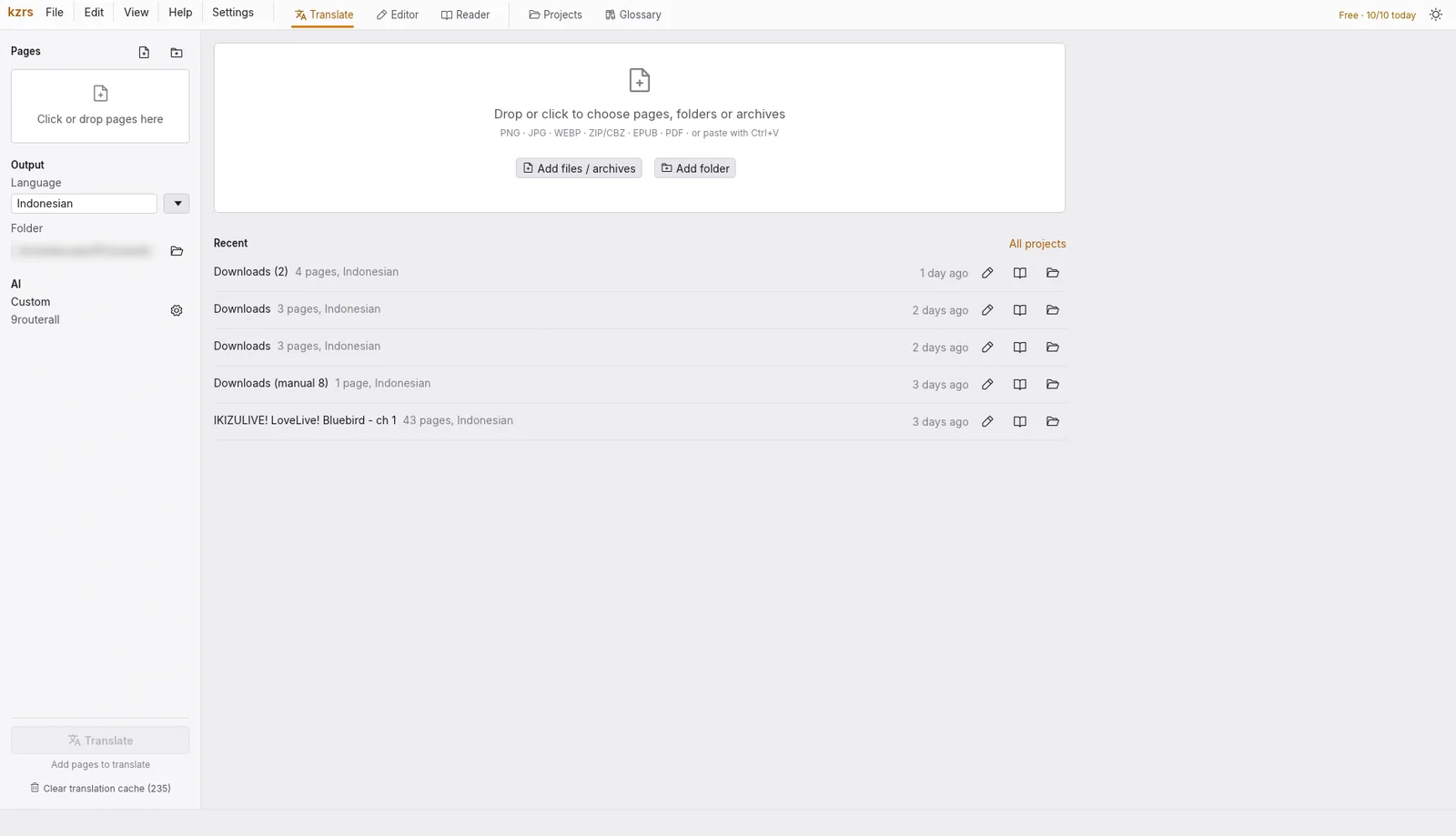
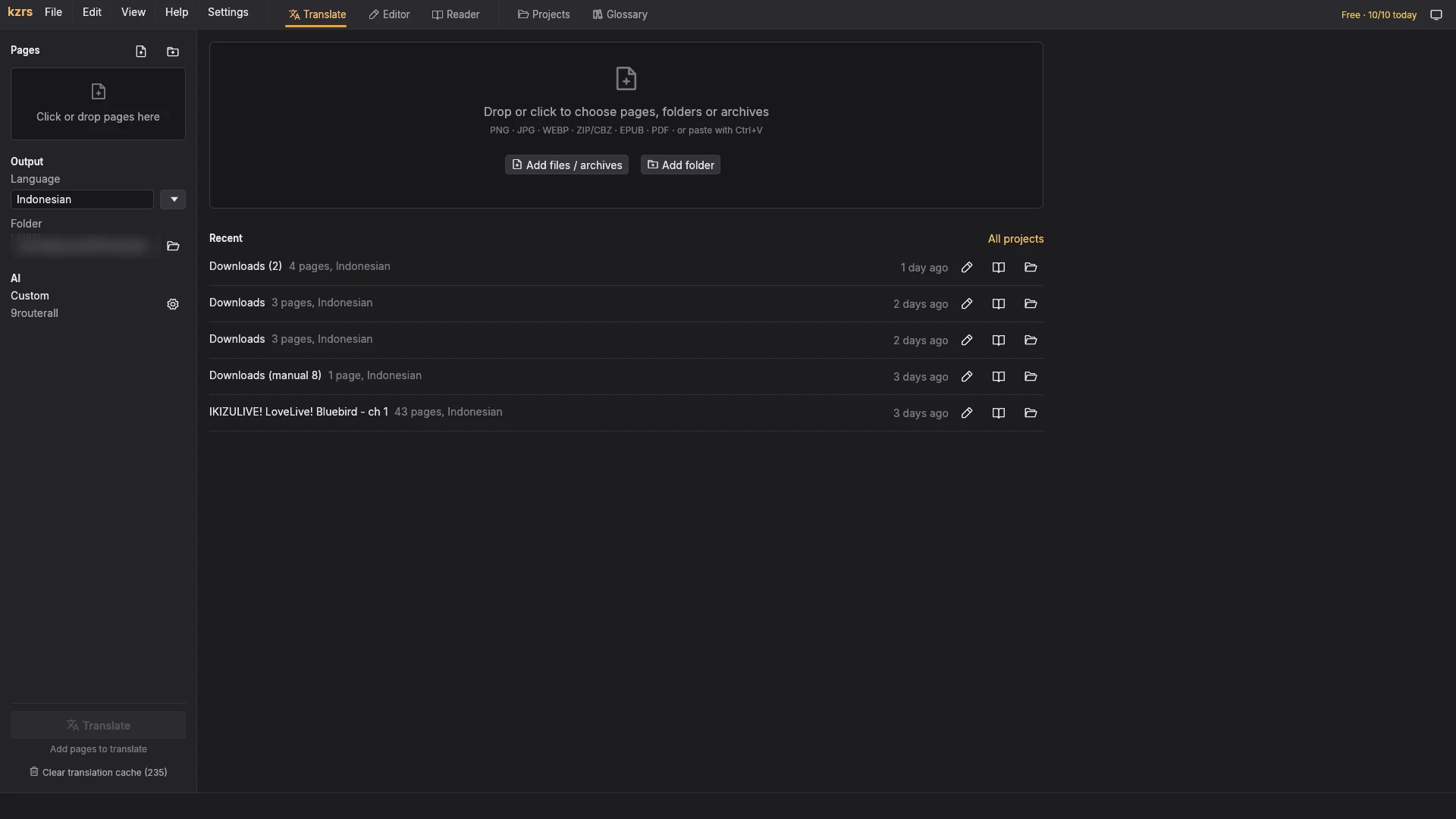
- 1 Open the Translate tab (Ctrl+1).
- 2 Drop pages on the window, or use Add files / archives or Add folder. Images, ZIP / CBZ, EPUB and PDF all work.
- 3 Choose the target Language and the output Folder on the left.
- 4 Press Translate. Pages appear one by one; the finished chapter is listed under Recent and in Projects.
5. Fix it in the editor
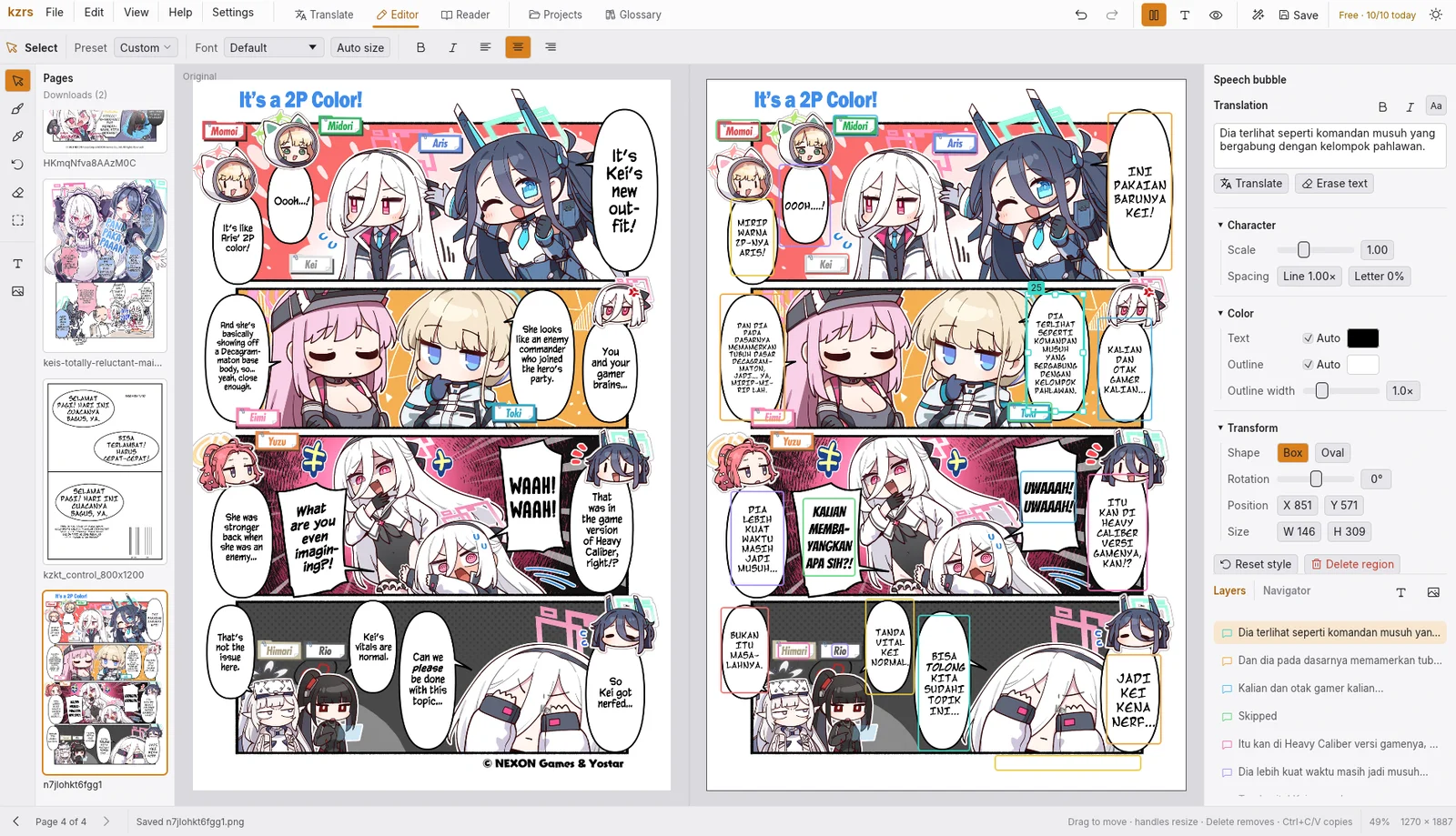
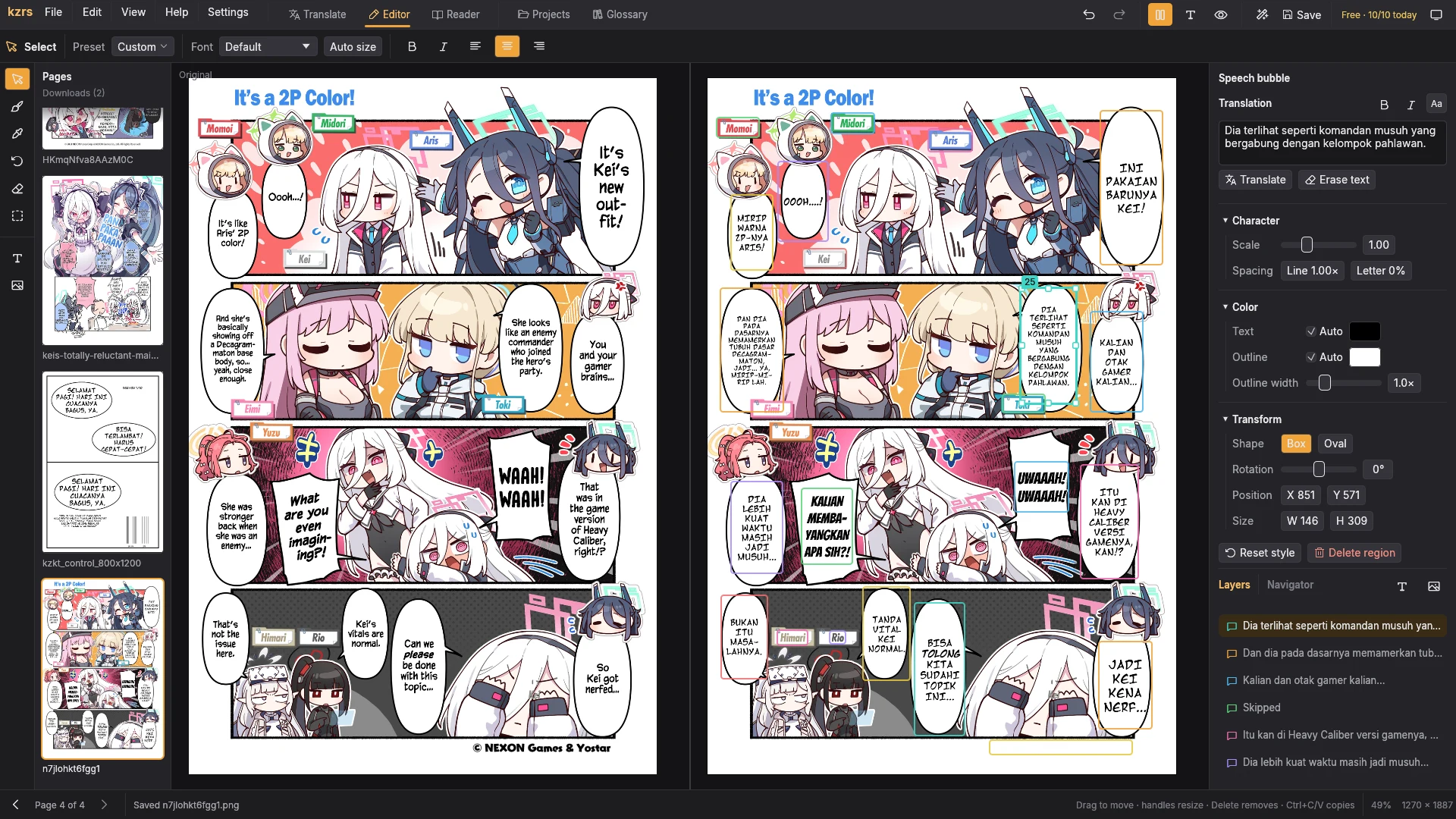
- 1 Click the pencil next to a project (or Edit in Projects) to open the Editor. The original is on the left, the translation on the right.
- 2 Click a box to select it. Change its text under Translation on the right; drag it to move, drag the handles to resize.
- 3 The bar above the page sets Preset, Font, size, bold, italic and alignment; the right panel has spacing, colours, outline and rotation.
- 4 Left tools: Brush (B) paints over the page, Restore (R) brings the untranslated page back, Erase area (M) cleans text in a box you drag, Text adds a new box.
- 5 With nothing selected, the Page panel can Detect bubbles, OCR free text, Erase text or Translate the page again.
- 6 Save with Ctrl+S. Undo and redo with Ctrl+Z and Ctrl+Shift+Z.
Tip · Hover a number field (size, spacing, rotation…) and turn the mouse wheel to nudge it.
6. Read and export
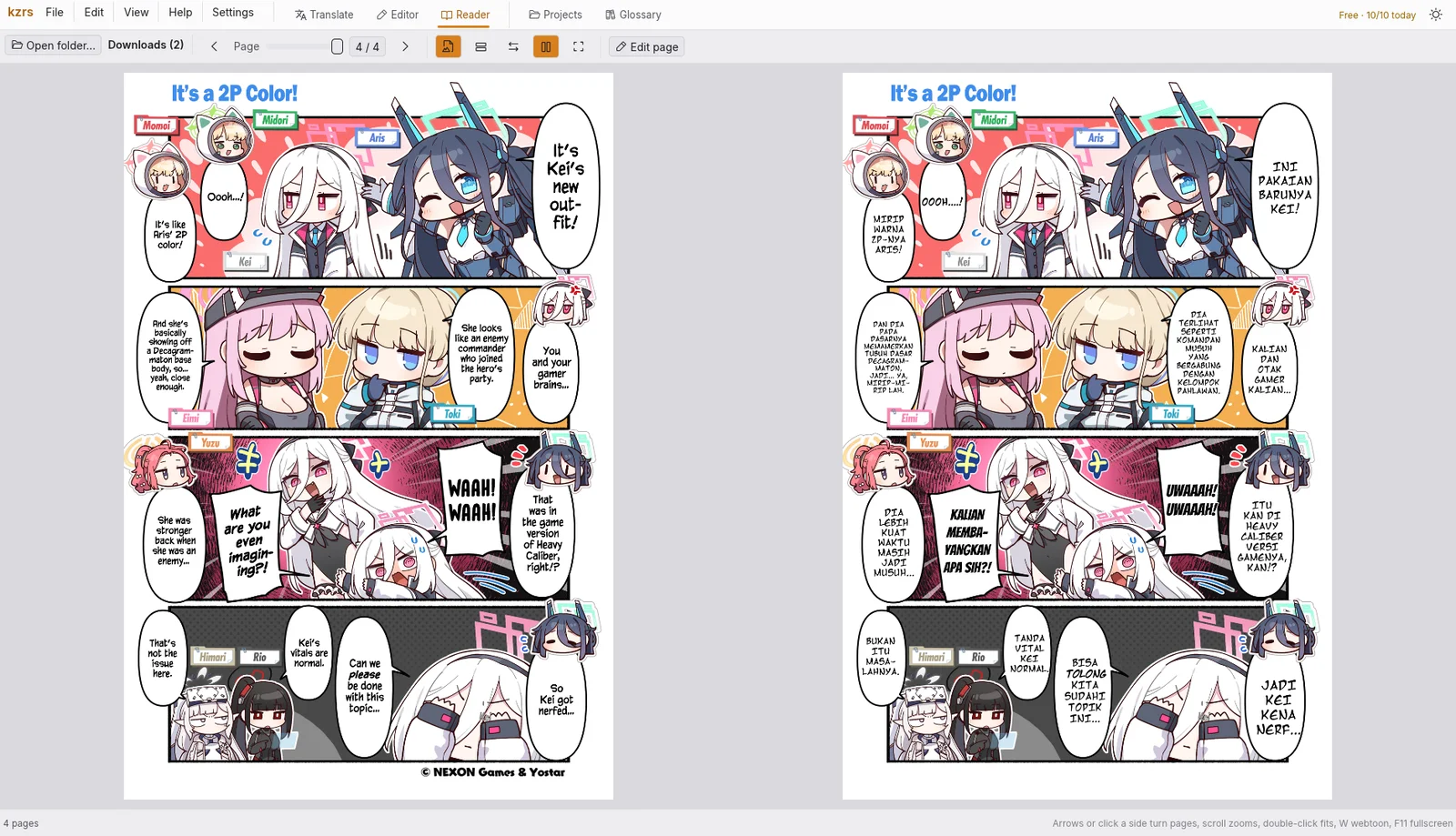
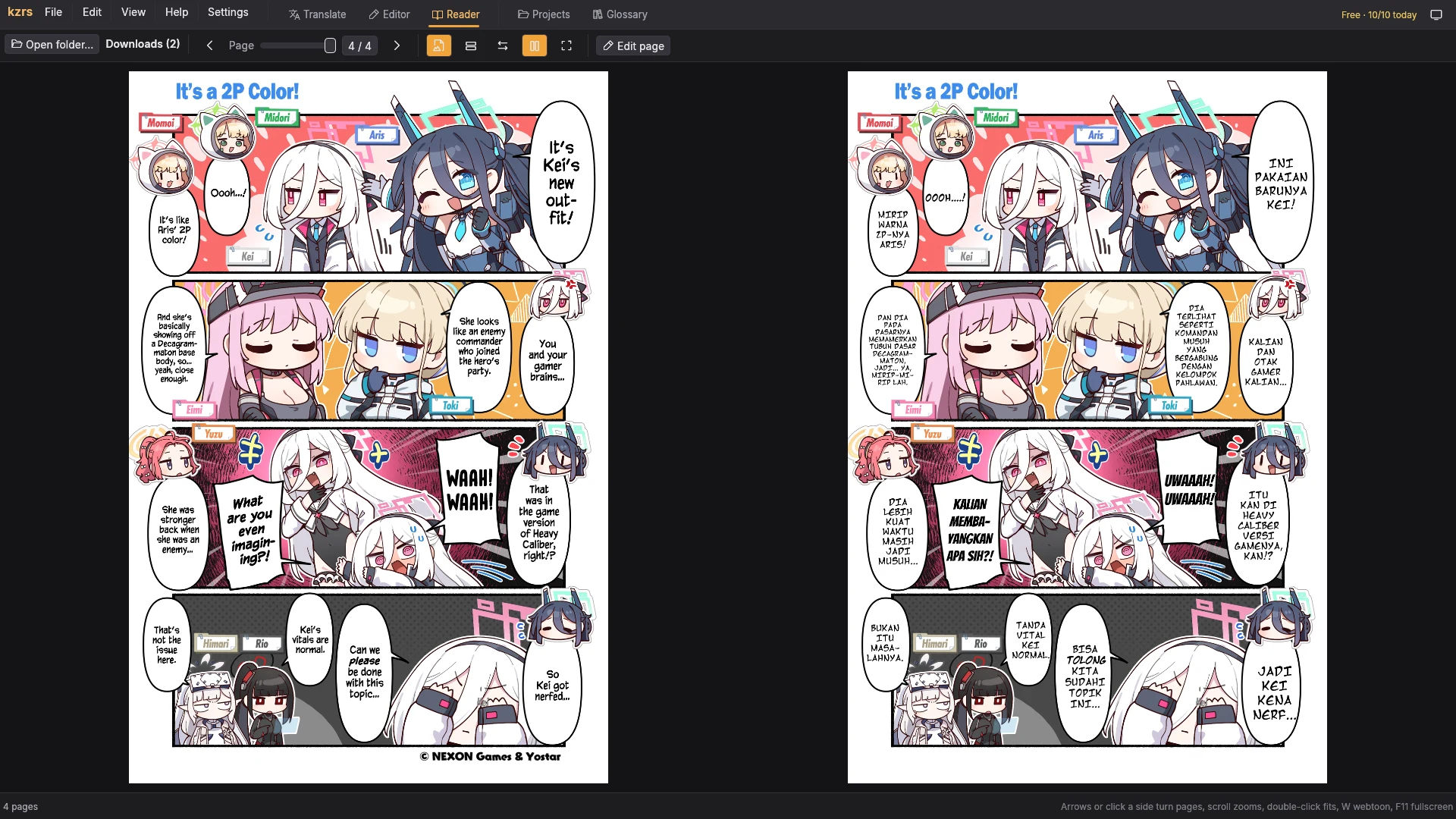
- 1 Open the Reader tab (Ctrl+3) to read page by page or as a webtoon; the compare button shows the original beside it, F11 goes fullscreen.
- 2 Edit page jumps straight to the editor at that page.
- 3 To share the chapter: File → Export as CBZ… or Export as PDF….
7. Projects and glossary
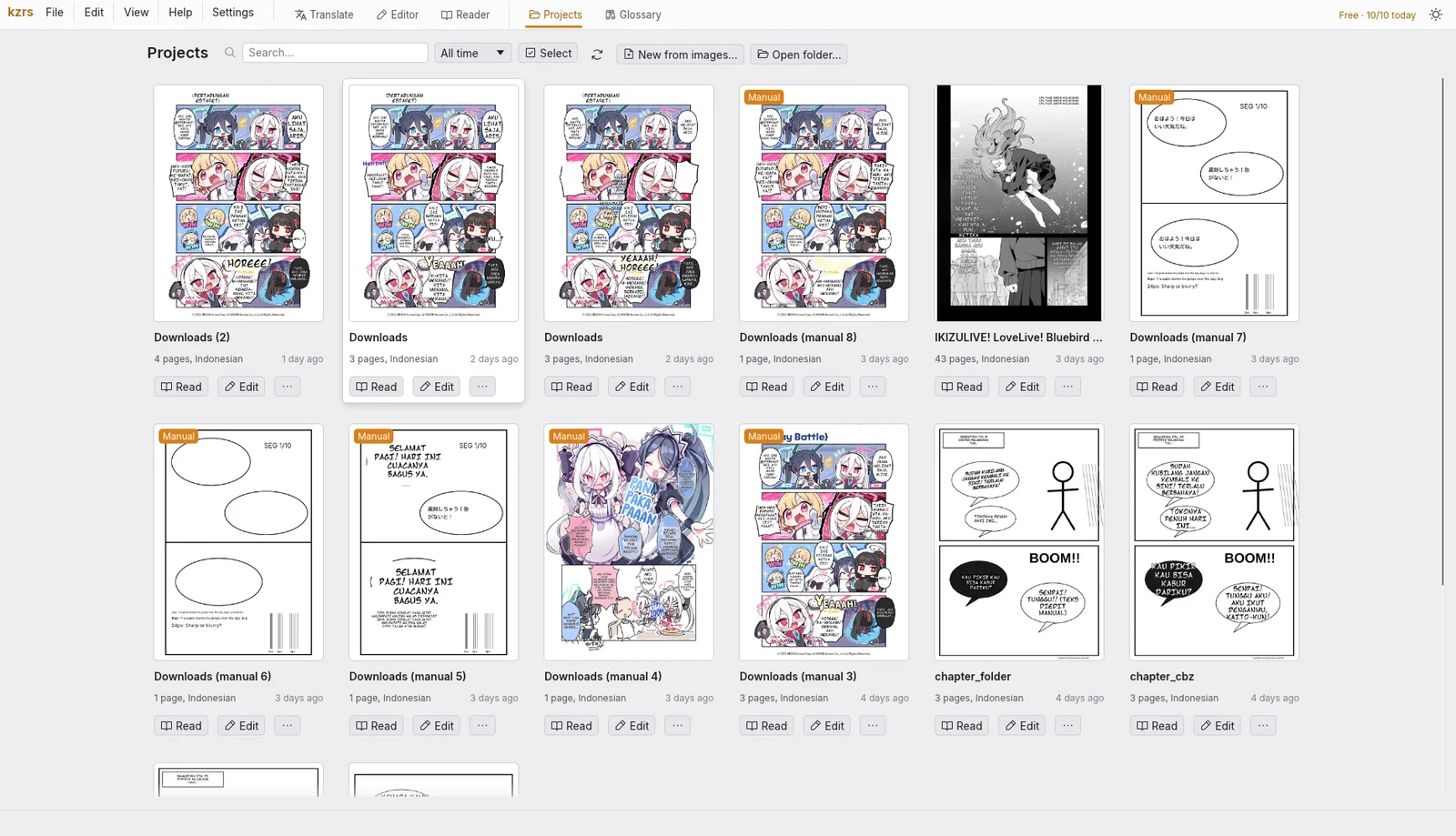
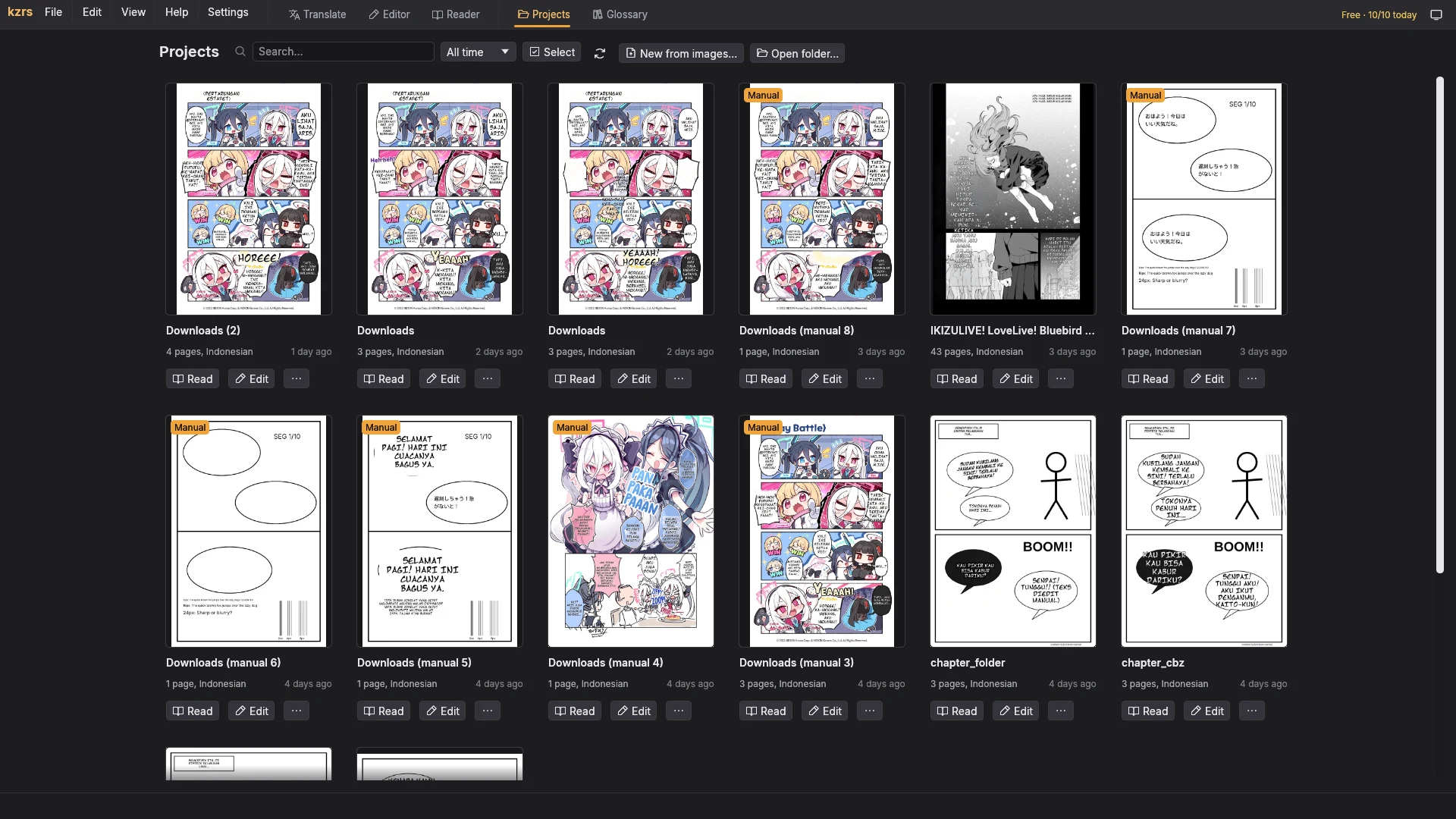
- 1 Projects (Ctrl+4) lists every chapter with its cover; search, Read or Edit any of them.
- 2 Glossary (Ctrl+5) keeps names and terms the same in every translation, for example a character's name.
Keyboard shortcuts
| Ctrl+1 … Ctrl+5 | Translate, Editor, Reader, Projects, Glossary |
| Ctrl+S | Save the page |
| Ctrl+Z / Ctrl+Shift+Z | Undo / redo |
| Ctrl+C / Ctrl+V | Copy / paste a box |
| Ctrl+D | Duplicate a box |
| Ctrl+B / Ctrl+I | Bold / italic |
| Ctrl+0 | Fit the page to the window |
| Ctrl+, | Settings |